
The landscape of artificial intelligence integrated development environments has shifted dramatically. While standard inline autocomplete remains a helpful utility, the true evolution of software engineering lives within autonomous loop systems. If you are tracking the latest tool capabilities, you have likely encountered cursor agent mode.
This feature moves beyond basic code text suggestions by empowering your editor to act as an independent software operator. Rather than editing individual lines of code on your command, it steps directly into a multi-file architecture to analyze context, build execution plans, run local terminal commands, and systematically fix its own compilation bugs. This deep dive breaks down a raw, real-world development session, exploring how this technology handles complex features while protecting your workspace from common bugs.
The Core Architecture of Cursor Agent Mode
To get the most out of an autonomous coding setup, it helps to understand how the underlying engine operates. This system is not just sending isolated text files to a large language model. It relies on a multi-layered automation environment embedded directly into the IDE interface.
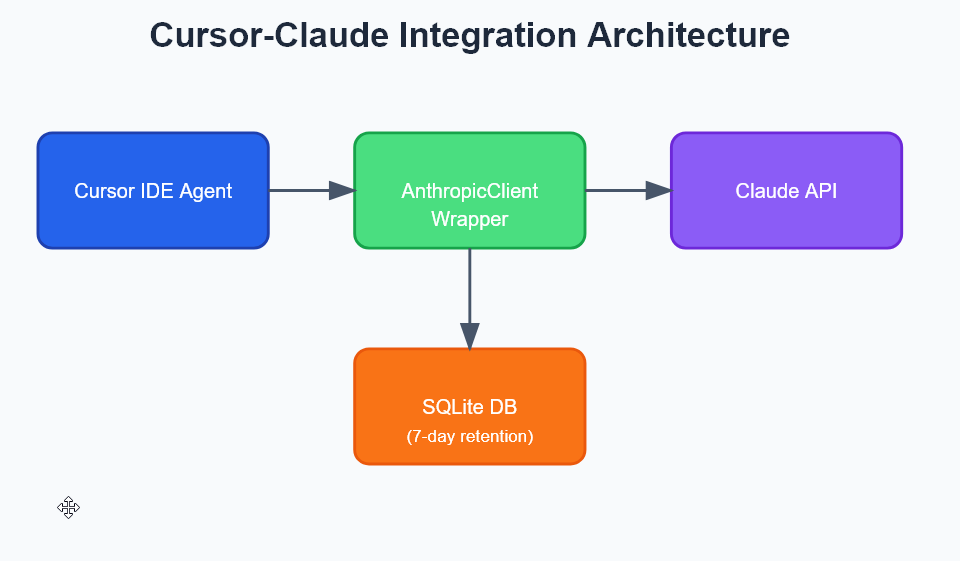
When you trigger a task, the workspace engine spins up an execution stream. The tool reads through your system index, structures file targets, creates localized isolation states via workspace configurations or Git worktrees, and processes terminal diagnostics until your constraints are completely resolved. Utilizing this feature effectively requires setting up clear boundaries so the system doesn’t over-write crucial shared functions.
Step-by-Step Workflow Teardown: Building a Multi-Tenant Feature
To evaluate how the tool manages complex cross-file relationships, we assigned the platform a challenging backend task: Implement a complete multi-tenant request isolation middleware and data logging layer across an existing Next.js App Router codebase. This requires editing middleware definitions, altering global database schemas, updating downstream API routing logic, and handling error exceptions simultaneously without breaking existing user routing logic.
Phase 1: Context Aggregation and Mapping
The execution loop begins with deep workspace scanning. By using precise index symbols, the engine targets dependencies without dragging useless configuration data into the prompt allocation.
-
Targeting specific targets: The workflow uses
@codebasemapping to parse structural layout rules, along with targeted references like@middleware.tsand@src/lib/db.tsto locate exact connection handlers. -
Reading project conditions: The agent automatically scans localized
.cursor/rules/markdown files to discover pre-established team style requirements before modifying variables.
Phase 2: Structural Plan Generation
Before rewriting active files, the platform summarizes its structural intentions inside the multi-file management interface known as cursor composer.
Plan Mode Authorization Required:
Create a new typescript definition file at
src/types/tenant.tsInsert tenant verification hooks inside
src/middleware.tsModify Prisma query routing inside
src/lib/db.tsto implement global tenant filteringWrite verification unit test scripts inside
src/__tests__/tenant.test.ts
This strategic planning phase is a crucial safeguard. Reviewing this initial structural plan allows engineers to catch architectural errors or invalid assumptions before the system writes incorrect logic to your disk.
Phase 3: Autonomous File Modification
Once you click to authorize the plan, the platform shifts into active production. This is where the cursor autonomous engine distinguishes itself from basic text generation tools.
Instead of forcing you to copy and paste code updates line-by-line, the agent opens the targeted files simultaneously, writes the required TypeScript classes, fixes absolute import paths across your directory folders, and applies clean syntax adjustments directly to the workspace layout.
Managing the Testing and Verification Cycle
Writing code is only half the battle; ensuring that code operates flawlessly within an active ecosystem is what defines a true development agent. Setting up an optimized cursor agent workflow helps make sure that code verification runs entirely in the background without derailing your focus.
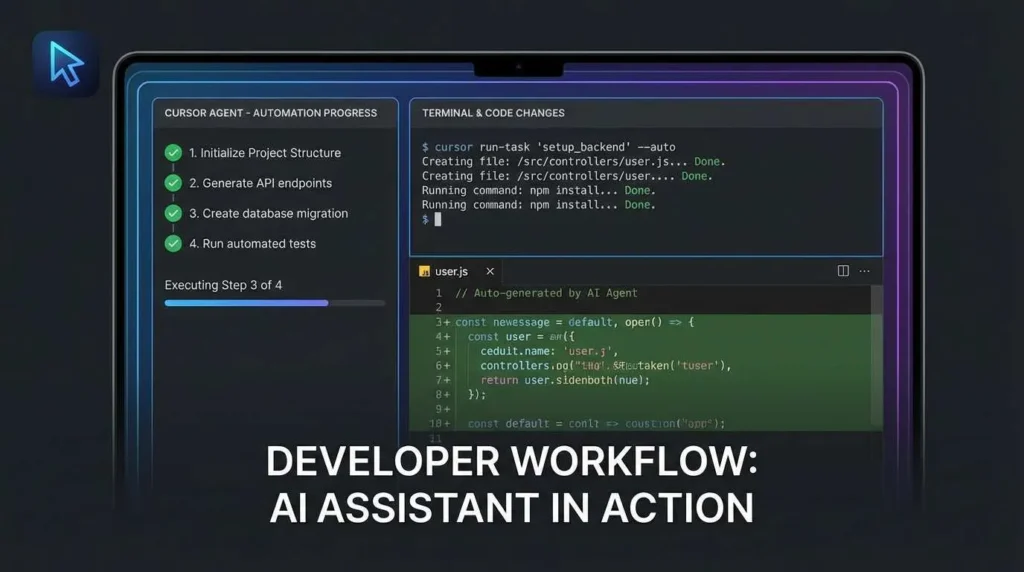
When a command validation fails during execution, the system does not halt to ask you for guidance. It intercepts the raw stack trace directly from the terminal console, reflects on the failure reason, adjusts its implementation pattern inside the file system, and retraces the test scripts until the execution output is completely green. For strict codebase enforcement, this logic maps seamlessly with standard validation patterns outlined in the official TypeScript Official Workspace System documentation.
Comparing Core Cursor Workspace Environments
Navigating the different execution environments inside this editor can be confusing for teams transitioning away from traditional IDE extensions. The table below breaks down when to deploy each interface asset.
| Environment Option | Ideal Production Scenario | Primary Capabilities |
| Inline Edit (Cmd+K) | Fast, localized syntax updates and rapid adjustments | Modifies active code blocks directly under the cursor |
| Standard Chat Sidebar | Conceptual architectural exploration and rule discussions | Answers natural language questions across indexed files |
| Cursor Composer | Complex multi-file refactoring and feature composition | Writes and coordinates code changes across separate directories |
| Agent Workspace Panel | Long-horizon engineering tasks and end-to-end automation | Executes file edits, runs local terminals, and resolves test failures |
Essential Best Practices for Agentic Development
Operating an autonomous coding agent requires shifting your personal mindset from a traditional coder to a high-level systems reviewer. Adhering to structured workspace habits ensures your codebase stays organized, secure, and accurate.
-
Isolate on Separate Branches: Never execute expansive agent tasks directly on your main production branch. Always initialize a dedicated Git branch before granting the agent permission to perform multi-file operations.
-
Keep Rule Files Modular: Instead of building one massive configuration file at your project root, split your project guidelines into separate, scoped markdown files inside the
.cursor/rules/folder. This ensures the engine only loads the instructions that match your active file targets. -
Enforce Clean Testing Hooks: Explicitly direct your agent to run specific, isolated test directories rather than executing your entire global validation pipeline after every minor syntax tweak. This saves thousands of token cycles and prevents long processing delays. Developers exploring options beyond Cursor may also want to compare GitHub Copilot alternatives, since several tools now offer similar agentic capabilities at different price points.
Final Takeaway
Transitioning your team into autonomous engineering workflows turns development into a collaborative supervisory experience. By establishing clear project guardrails, reviewing code changes through structured diff screens, and letting the automated system handle repetitive testing cycles, you can significantly accelerate your feature delivery pipelines while maintaining exceptional structural quality.
To explore more technical tool comparisons, advanced workflow blueprints, and actionable software development strategies, follow our continuous coverage over at Openaihit.
Frequently Asked Questions
How does Cursor Agent Mode differ from standard Cursor Composer?
Standard Composer functions primarily as a multi-file writing assistant that generates code blocks across various files based on your direct prompts. Agent Mode takes that concept further by adding true autonomy; it is capable of self-correcting errors, using local system tools, running background terminal test suites, and looping through code fixes until your criteria are satisfied.
Does Cursor Agent Mode run shell commands without user consent?
By default, the platform can be configured to request explicit permission before executing terminal inputs or running custom build configurations. For fluid, repetitive operations on secure local applications, you can enable auto-run permissions, but it is highly recommended to leave manual validation toggled on for any production-adjacent workspace.
Can the agent handle large legacy migrations independently?
Yes, the platform is highly effective at executing wide-ranging modernization tasks, such as translating older JavaScript repositories into clean TypeScript structures. Because it manages up to 1 million input tokens of repository index context, it can update imports, generate necessary interface definitions, and clear up cross-file type mismatches across deep project layouts automatically.
What should I do if the agent gets stuck in a repetitive loop?
If you notice the assistant applying the same failing syntax patch over and over during a terminal debug cycle, you should cancel the active execution run. Step in as the system architect, provide direct context pointers using explicit @file references, and command the agent to re-evaluate its approach from a fresh perspective.