
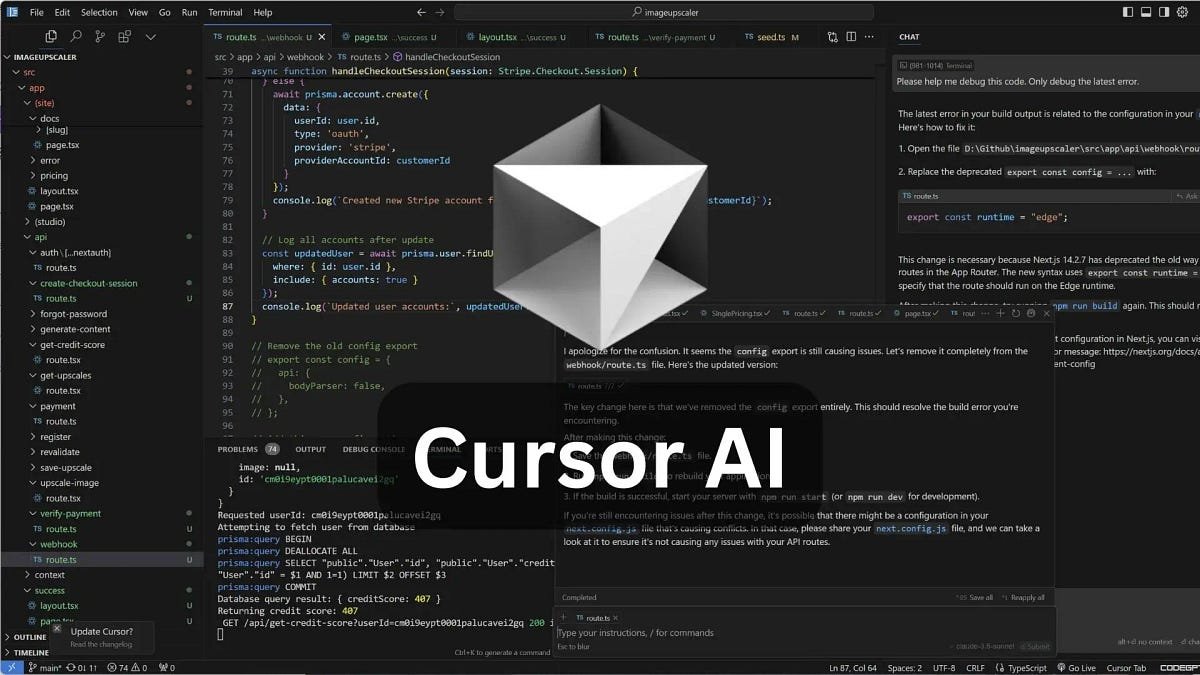
If you are still using your standard code editor without AI assistance, you are likely losing hours of development time every single week. Code editors have evolved rapidly, and Cursor has quickly become the go-to tool for developers looking to ship software faster. By integrating artificial intelligence directly into the editing experience, it fundamentally changes how we write, debug, and understand code.
Implementing a highly optimized cursor productivity workflow is not just about letting AI write code for you. It is about using the right commands at the right time to eliminate repetitive tasks, fix bugs instantly, and navigate massive codebases without getting lost. In this guide, we will break down six practical workflows that save our team hours of manual labor every week.
Why Developers Are Switching to Cursor
Traditional editors require you to constantly jump between your code, terminal, and a browser window to look up documentation or chat with an external AI tool. Cursor eliminates this friction by bringing context-aware AI directly into your development environment.
Whether you need to refactor a legacy function or generate a complex script from scratch, these specialized workflows will help you get the most out of the editor.
1. The Multi-File Editing Workflow (Composer)
One of the most powerful features in Cursor is Composer. Unlike basic AI completions that only work on one file at a time, Composer allows you to make sweeping changes across your entire project simultaneously.
How It Works
By pressing Cmd + I (or Ctrl + I on Windows), you open the Composer interface. From here, you can instruct the AI to modify multiple files at once. For example, if you add a new field to a database schema, you can ask Composer to update the backend route, the frontend form, and the validation logic all in one single prompt.
Step-by-Step Execution
-
Open Composer using the keyboard shortcut.
-
Tag the relevant files using the @ symbol.
-
Describe the change you want to make in plain English.
-
Review the multi-file diff layout and accept the changes.
This approach eliminates the tedious process of copying and pasting code snippets across different directories, making it a foundational cursor productivity workflow for modern app development.
2. Context-Aware Debugging with Terminal Integration
Getting an error in your terminal usually means copying the stack trace, pasting it into a search engine, and scrolling through old forum posts. Cursor simplifies this by linking your terminal directly to the AI.
Navigating Error Logs
When a command fails in the Cursor terminal, you will see a button that allows you to analyze the error with AI. This action automatically pulls the terminal output and the code from your open files into the AI context window.
Why This Saves Time
Instead of guessing why a build failed, the editor analyzes the exact environment variables, dependencies, and syntax errors causing the issue. It then provides a targeted code fix that you can apply with a single click. This smooth diagnostic pipeline shows why a customized cursor workflow is an absolute game-changer for engineering teams trying to stay in the zone.
3. Rapid Code Refactoring with Command K
If you need to make quick edits to a specific block of code, opening a full chat window can feel like overkill. This is where inline generation becomes highly efficient.
By highlighting a block of code and pressing Cmd + K, you can type a quick instruction like “convert this to a cleaner filter method” or “add error handling.” The editor applies the change directly inline, allowing you to maintain your focus without switching context. This is one of the top cursor tips for keeping your codebase clean during active development.
4. Onboarding to Legacy Codebases via @Repo
Joining a new project with thousands of unfamiliar lines of code is always challenging. Instead of spending days reading through files linearly, you can use global repository indexing to understand the architecture quickly.
Using the Repository Index
By using the @Repo tag in the chat sidebar, you ask the AI to scan your entire codebase for answers. You can ask structural questions such as “Where are the authentication tokens handled?” or “How does the payment notification webhook process data?”
Generating Documentation
You can also use this feature to generate documentation for complex systems. The AI will trace the execution path across various modules and output a clean markdown summary of how the components interact. This setup makes an advanced environment of cursor for developers feel intuitive right from day one.
5. Integrating Live Documentation with @Docs
Technology moves faster than the training data of most AI models. If you are working with a newly released library or a recent framework update, generic AI models might suggest outdated syntax.
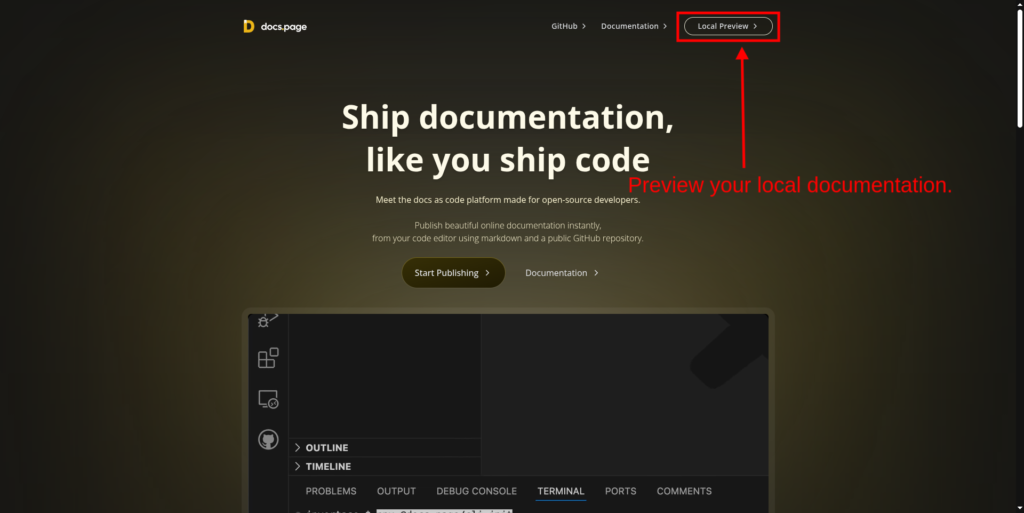
Cursor solves this issue through the @Docs feature, which lets you pull live, web-scraped documentation into your prompt context.
Setting Up Custom Docs
-
Open the chat sidebar (Cmd + L).
-
Type @Docs and select “Add New Doc.”
-
Paste the URL of the official documentation site.
-
Cursor indexes the pages so you can reference them instantly.
This ensures that the code generated by the editor perfectly aligns with the latest API versions, preventing frustrating syntax deprecation issues. If you want to compare how these internal editor tools match up against external prompt structures, check out our comprehensive guide on how to use Claude 3.5 Sonnet projects to streamline your broader engineering roadmap.
6. Automated Test Generation Workflows
Writing unit tests is highly important but can often feel repetitive. Setting up mocks, creating test cases, and asserting outputs takes up valuable time that could be spent building features.
Leveraging Boilerplate Automation
By combining inline editing with repository context, you can highlight a new utility function or API endpoint and command the editor to write a comprehensive test suite. The AI checks your existing testing framework configurations, whether you use Jest, Vitest, or PyTest, and mirrors your established style. For a broader look at how different platforms handle automated code generation, this comparison of AI code writing tools worth trying in 2026 covers several options beyond Cursor.
To ensure your automated scripts run flawlessly across cloud testing pipelines, you can cross-verify your environment metrics on the official GitHub repository registry to maintain clean production builds.
Improving Test Coverage
You can also ask the AI to identify edge cases you might have missed, such as null values, empty strings, or network timeouts. This keeps your application stable without requiring hours of manual test scripting. Adopting this rigorous cursor tips methodology ensures high test coverage without exhausting your engineering cognitive load.
Performance Comparison: Standard Editor vs. Cursor Workflows
To see how much time an optimized cursor workflow can save, let us look at an estimated breakdown of common daily development tasks based on available team data.
| Development Task | Traditional Editor Manual Time | Cursor AI-Assisted Time | Estimated Time Saved |
| Explaining legacy code architectures | 40 minutes | 2 minutes | 38 minutes |
| Fixing complex terminal build errors | 25 minutes | 3 minutes | 22 minutes |
| Writing comprehensive unit tests | 30 minutes | 5 minutes | 25 minutes |
| Multi-file feature refactoring | 60 minutes | 10 minutes | 50 minutes |
| Boilerplate code setup | 15 minutes | 1 minute | 14 minutes |
Best Practices for Maintaining Code Quality
While these workflows significantly speed up development, relying blindly on AI output can introduce subtle bugs. Always treat the editor as an exceptionally fast assistant rather than an autonomous developer.
Review Every Diff Thoroughly
Before accepting a change, especially inside Composer, use the side-by-side diff viewer to see exactly what lines are being added or deleted. Ensure the AI has not accidentally removed necessary comments or custom configurations.
Keep Your Codebase Well-Indexed
Cursor relies heavily on local embeddings to understand your project. Make sure you allow the editor to fully index your repository when you first open it. A well-indexed project leads to much more accurate code generation, turning the environment into a highly intelligent cursor for developers deployment. If you’re deciding between AI coding assistants, this hands-on Claude Code vs GitHub Copilot comparison tests both across 30 real tasks.
Conclusion
Transitioning to an AI-first development environment can feel like a major shift, but mastering a clean engineering routine pays off immediately. By utilizing Composer for multi-file changes, leveraging terminal integration for debugging, and pulling live data via custom docs, you can eliminate the most tedious parts of your workday.
As we continue to track the latest shifts in software engineering tools at the official Openaihit homepage, it is clear that editors like Cursor are no longer optional tools for those who want to stay competitive. Implement these workflows into your daily routine to reclaim your development hours and focus on building great products.
Frequently Asked Questions
What makes Cursor different from standard AI extensions?
Cursor is built from the ground up as a standalone fork of VS Code. This allows it to integrate AI deeply into the core user interface, offering smoother multi-file edits, built-in terminal analysis, and faster contextual processing than typical plugins.
Can I use my existing VS Code themes and extensions in Cursor?
Yes, you can import all your favorite themes, keybindings, and extensions with a single click during setup, since Cursor is built on the same open-source foundation as VS Code.
Does Cursor require an internet connection to generate code?
Yes, the advanced AI features require an internet connection to communicate with the cloud models that process your prompts and codebase context.
Is my code private when using these AI workflows?
Cursor offers a dedicated Privacy Mode. When turned on, none of your code or prompt data is stored or used to train future AI models.