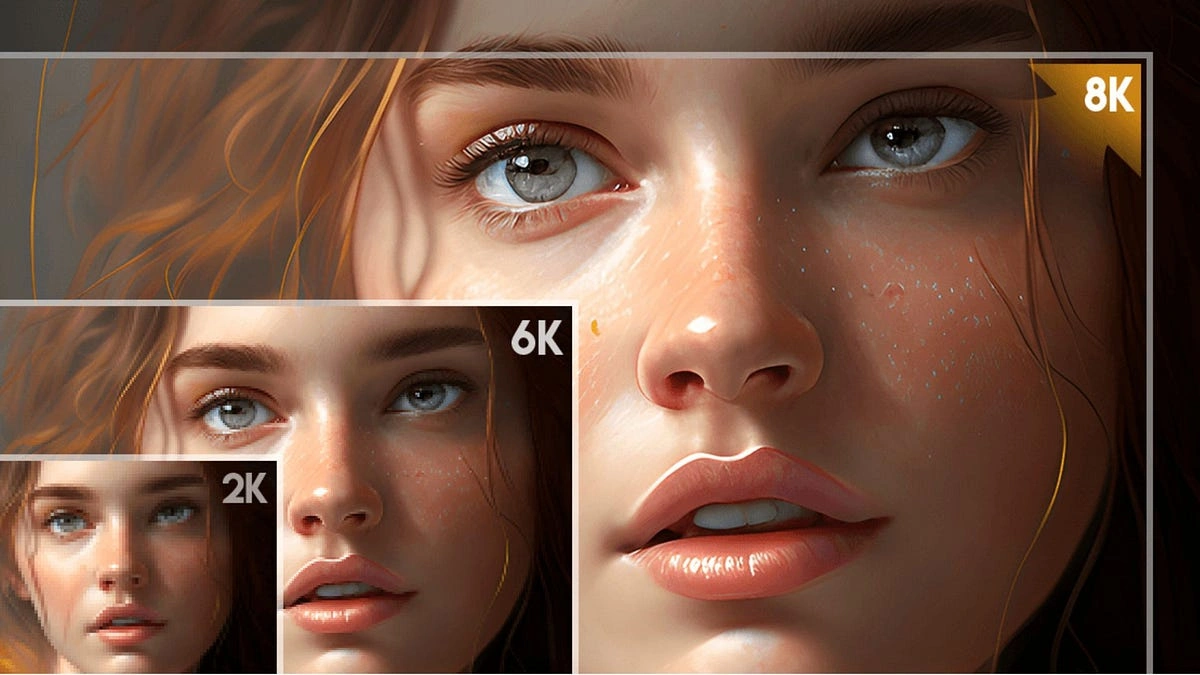
Low-resolution photos, blurry graphics, and pixelated digital art can easily ruin a graphic design project, an e-commerce store listing, or a prized family print. Fortunately, learning how to upscale image ai online has never been easier or more accessible.
To upscale an image using artificial intelligence for free, you simply upload your low-resolution file into a specialized ai image upscaler platform, select your target multiplication factor (such as 2x, 4x, or 8x), and let the deep learning algorithm reconstruct lost details. Unlike legacy image software that simply stretches existing pixels, a modern ai photo enhancer free tool analyzes visual patterns to insert fresh, sharp texture, crisp lines, and natural edge definitions in seconds.
Whether you need an ai image resolution tool to prepare artwork for printing or want to enhance photo quality ai style for social media, this guide breaks down everything you need to know.
Understanding AI Image Upscaling vs. Traditional Resizing
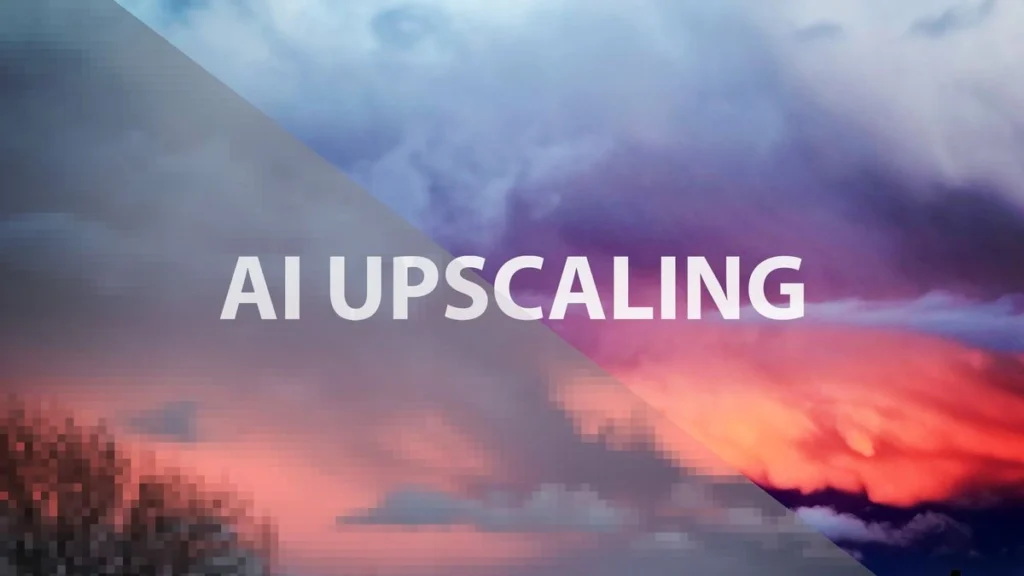
For decades, increasing the size of a digital picture meant using simple mathematical interpolation, such as bilinear or bicubic resampling. When standard editing software enlarges an image with standard interpolation, it estimates color values between original pixels by averaging them. The result is almost always a soft, hazy, or pixelated graphic that looks visibly stretched.
An artificial intelligence upscaler operates on an entirely different mechanism. Rather than guessing pixel colors based solely on neighboring values, deep neural networks are trained on millions of high-resolution and low-resolution image pairs.
How Neural Networks Reconstruct Detail
When you run an image through an ai image resolution tool, the system breaks the file down into structural elements. It recognizes human skin, fabric weaves, hair strands, text, architectural lines, and background landscapes.
Based on its massive training dataset, the AI model predicts what those specific textures should look like at a much higher resolution. It then synthesizes brand new pixels to fill in missing information. This generative reconstruction allows an ai image upscaler to convert a 500-pixel thumbnail into a crisp, high-definition photo without introducing ugly compression artifacts.
Top Free AI Image Upscalers Tested and Compared
Not all free upscaling applications offer the same feature set, speed, or quality. Some tools run directly in your internet browser for maximum convenience, while open-source software runs locally on your computer for total privacy and unlimited usage.
Below is an overview of top options available for users seeking an ai photo enhancer free solution based on available data:
| Tool Name | Processing Type | Max Free Upscale | Best Used For | Key Advantage |
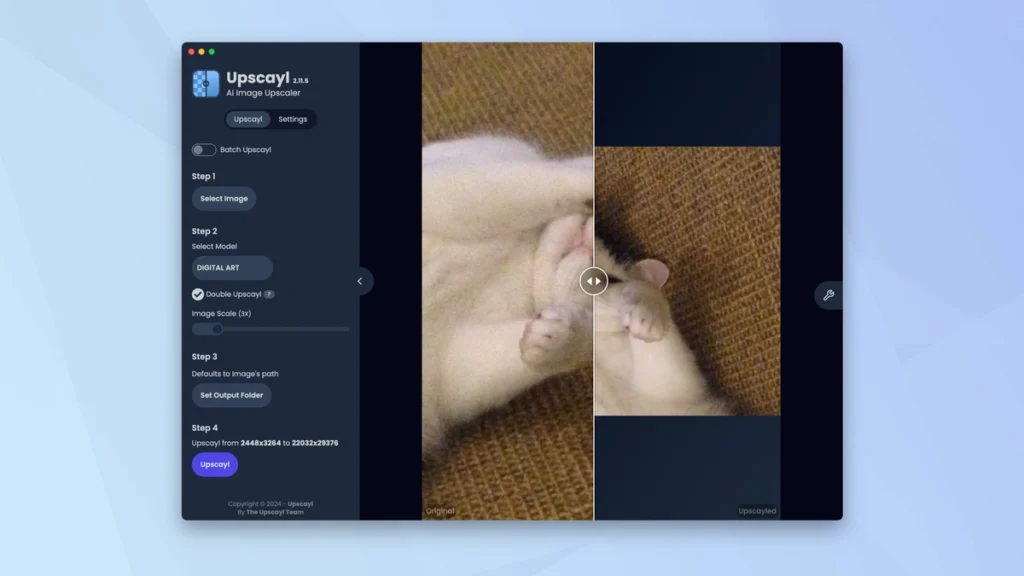
| Upscayl | Desktop App (Open Source) | Up to 16x | High volume & privacy | Free forever, runs offline, zero watermarks |
| MyImageUpscaler | Web Browser | 4x | Quick online fixes | No signup needed, clean exports |
| Real-ESRGAN Web | Web / Open Source | 4x | Digital art & anime | Superior line preservation on illustrations |
| Leonardo AI (Free Tier) | Web Platform | Up to 8x | AI-generated art | Handles complex synthetic textures seamlessly |
| Bigjpg | Web / Mobile | 2x (Free tier) | Anime & illustrations | Specialized noise reduction for clean line art |
1. Upscayl (Best Open-Source Desktop Solution)
Upscayl is a leading free, open-source desktop application available for Linux, macOS, and Windows. Because it processes everything locally on your computer hardware, you never have to upload personal photographs to a remote cloud server. It allows you to enhance photo quality ai without limits, offering batch processing and multiple AI model presets tailored for photos or digital art.
2. Browser-Based Web Tools
If you prefer not to download software, browser-based utilities like MyImageUpscaler or Swiftspeed allow you to upscale image ai online instantly. These tools process files on dedicated cloud servers, making them ideal for mobile phone users or lower-spec laptops.
3. Specialized Models for Anime and Digital Art
Tools built upon the Real-ESRGAN architecture excel at upscaling vector art, cartoons, and digital paintings. Standard photographic algorithms can sometimes over-sharpen cartoon drawings or introduce strange skin textures. Using an ai image resolution tool specifically trained on illustrations ensures flat colors remain smooth and contour lines stay razor sharp.
Step-by-Step Guide: How to Upscale Images Using AI for Free
Following a systematic workflow ensures you get the sharpest possible output without introducing artificial noise or unwanted distortion. Here is how to complete the process smoothly.
Step 1: Evaluate Your Source Image
Before uploading your picture to an ai image upscaler, examine its baseline condition. AI models perform best when given a reasonably clear source image.
If your photo contains severe heavy blur or extreme camera out-of-focus issues, the upscaler may struggle to reconstruct sharp details. Clean up extreme color cast or basic exposure issues in a standard photo editor first if necessary.
Step 2: Choose Your AI Upscaling Platform
Decide whether a browser-based workflow or a local desktop application suits your project:
-
Select a web platform if you only need to upscale image ai online for a single photo quickly.
-
Download a desktop application like Upscayl if you have dozens of images or require high privacy.
Step 3: Select the Appropriate AI Model
Most modern upscaling engines offer multiple model modes. Choosing the right preset prevents unnatural artifacts:
-
General Photo / Portrait Mode: Reconstructs subtle facial features, skin pores, fabric textures, and realistic depth of field.
-
Digital Art / Anime Mode: Smooths flat gradients, sharpens clean strokes, and eliminates color banding.
-
High-Compression / De-noise Mode: Removes heavy JPEG blockiness and grain before enlarging the canvas.
Step 4: Set Your Scaling Factor and Process
Select your target output size, typically 2x or 4x the original dimensions. For example, converting an 800 x 600 pixel web graphic into a 3200 x 2400 pixel image requires a 4x multiplication pass. Click the process button and wait for the deep learning pass to complete.
Step 5: Inspect and Download Your File
Zoom in to 100% on critical areas like faces, text, and intricate patterns. Check that no odd visual hallucinations or plastic textures were added. Once satisfied, save your final image in a lossless format like PNG to preserve newly generated details.
Essential Tips to Get Professional Upscaling Results
Using an ai photo enhancer free tool is straightforward, but applying a few professional strategies will drastically improve your final image clarity.
Avoid Over-Upscaling in a Single Pass
Attempting to jump from a tiny 100-pixel icon directly to an 8K display resolution in one leap can cause the AI to guess too aggressively, creating strange artifacts. It is often better to run a 2x upscale first, apply subtle sharpening, and then run a second 2x upscale pass to reach your destination resolution.
Match the Tool to Your Specific Content
Different neural networks specialize in distinct visual domains. A tool optimized for landscapes might over-process human portraits, making skin look unnaturally plastic. When you need to enhance photo quality ai style for family photos, choose a platform explicitly offering face recovery features.
Balance Sharpness with Noise Reduction
Excessive noise reduction can wash out fine details like grass, brickwork, or fabric weave. Always review the output side by side with the original to confirm that realistic grain and natural textures remain intact.
Important Considerations: Watermarks, Privacy, and Limits
While many platforms advertise a free experience, it is important to review operational terms to avoid surprises during your workflow.
Check Output Watermarks
Some free online utilities allow unlimited processing but apply a prominent branded watermark over your exported image unless you pay. Look for verified watermark-free platforms or use open-source software to ensure your finished work remains completely clean.
Data Security and Image Retention
When you upload personal photographs, business graphics, or unreleased product designs to a cloud-based ai image upscaler, your files travel to an external server. Always verify whether the provider automatically deletes uploaded assets within a short window. For sensitive commercial or personal graphics, offline desktop applications offer maximum data security.
Daily Credit Caps and File Size Restrictions
Free web tiers frequently enforce daily limits on image uploads, maximum file dimensions (such as 5MB per file), or processing queues. Keep these constraints in mind if you plan to process high volumes of graphics in a single session.
Final Thoughts
Enhancing visual assets no longer requires expensive desktop software suites or professional graphic design experience. By leveraging a free ai image upscaler, you can instantly transform pixelated thumbnails, low-res web captures, and compressed photographs into high-resolution graphics suitable for print, presentation decks, or web publishing.
For the best results, select an engine tailored to your subject matter, review output files carefully for natural textures, and consider open-source desktop software if privacy is a priority. To explore more actionable tutorials, digital tools, and artificial intelligence guides, visit openaihit.com.
Frequently Asked Questions
Can an AI image upscaler fix completely blurry or out-of-focus photos?
An ai image upscaler works best on low-resolution or pixelated photos that still contain basic structural detail. While AI models can correct mild blur and compression artifacts, extreme motion blur or severe out-of-focus camera shots cannot be fully restored, as crucial detail is fundamentally missing.
Does upscaling an image increase file size?
Yes, increasing an image’s resolution adds millions of new pixels, which increases the total file size. Exporting a file at 4x resolution in a high-quality format like PNG will result in a significantly larger megabyte size than the low-resolution JPEG original.
What is the difference between 4K resolution and megapixels?
4K refers specifically to display width (approximately 3,840 pixels horizontally), whereas megapixels measure the total pixel count across the entire surface area (width multiplied by height divided by one million). An ai image resolution tool increases both pixel dimensions and overall megapixel count simultaneously.
Is it legal to upscale images using free AI tools?
Upscaling an image you own or have permission to use is completely legal. However, upscaling copyrighted images created by others does not transfer ownership or copyright rights to you. Always ensure you hold the proper license for any source material you process.